Managing Listings
Introduction
Once your ads are live, the work is not over. The Showroom Dashboard gives you tools to monitor performance, update details, and manage the lifecycle of your stock.
Core Terminology
| Term | Meaning |
| Performance Indicator | A coloured badge (Green / Yellow) showing how well your ad ranks in search results. |
| Re-Moderation | A quick review triggered when you edit photos, description, or specs on a live listing. |
| Dashboard Tabs | The Active / Moderation / Rejected / Sold / Drafts categories for managing your inventory. |
The Dashboard Tabs
Showrooms organise listings into distinct tabs for easy management:
- Active: Live on the site. Searchable by buyers.
- Moderation: Under review by the team (usually takes from 1 minute).
- Rejected: Needs your attention. Click to see the specific reason.
- Sold: Your history of successful sales.
- Drafts: Saved but not yet published.
Note: Listings do not expire. They remain active until you mark them as Sold or delete them.
Performance & Analytics
Showrooms have access to advanced analytics to track how their stock is performing.
Performance Indicators
You will see coloured badges on your listings:
- Good Performance (Green): Your ad is in the top positions — getting high views and leads.
- Normal Performance (Yellow): Middle position. Consider using Refresh or Promotion to boost it.
The Dashboard Logic

Figure 1: Track impressions, clicks, and leads in real time.
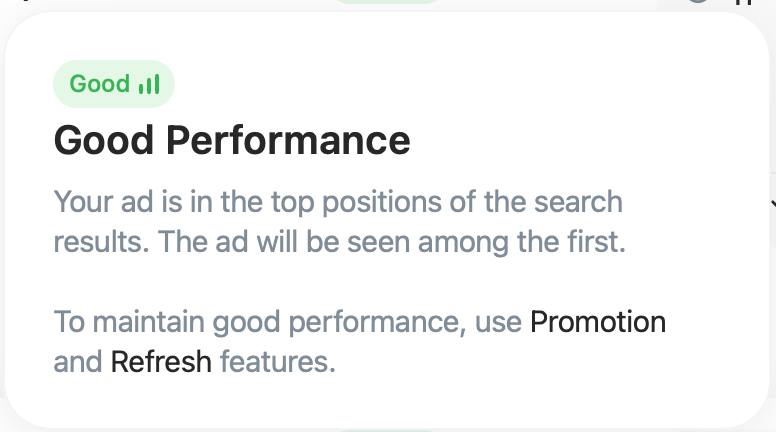
Figure 2: "Good" — your ad sits in the top positions of search results.
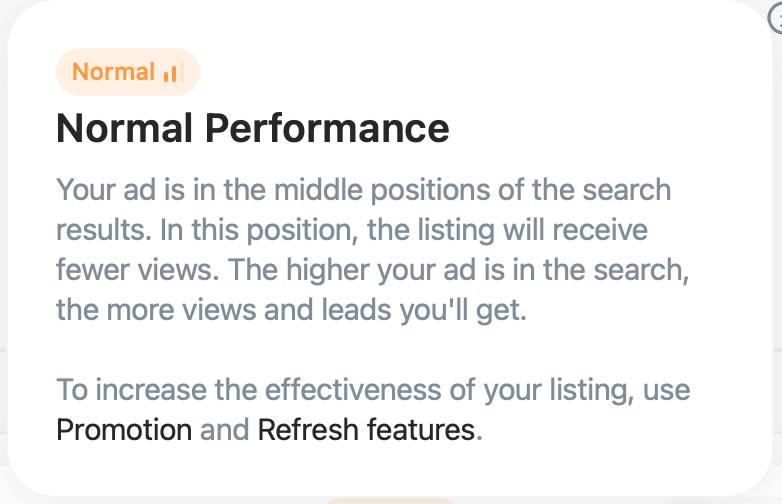
Figure 3: "Normal" — consider Promotion or Refresh to improve visibility.
Editing Rules & Moderation
Not all edits are created equal.
Safe Edits (Instant Update)
- Price: Changing the price updates instantly.
Critical Edits (Re-Moderation)
Changing key data triggers a quick re-check (usually minutes):
- Photos: Adding new photos.
- Description: Changing the text.
- Specs: Changing model or trim.
Common Rejection Reasons
- Category mismatch: Putting a "Toyota Pickup" in the "Sedan" category.
- Watermarks: Your logo is too large and covers the car.
- Description spam: Stuffing unrelated keywords ("BMW, Audi, Mercedes") in a Toyota description.
Note on VIN: The absence of a VIN is NOT a reason for rejection. High-end or rare cars (Classic, Hypercars) often hide the VIN for privacy.
Useful Links
Related Pages
What to Read Next
Leads are coming in. How do you handle them?