

Comparing Models
Introduction
Torn between a Nissan Patrol and a Toyota Land Cruiser? AUTO.AE offers two comparison tools: compare models via the Catalog and compare specific listings from the search results.
Core Terminology
| Term | Meaning |
| Compare Button | The Split Car icon on listing cards — click it to add a model or listing to your comparison. |
| Comparison Bucket | The temporary list of cars you have added for side-by-side review. |
| Asking Price | The seller's listed price shown in the comparison table — use it to spot the best deal. |
Comparing Models (Catalog)
Use this to compare models side by side based on technical specifications from the Catalog.
How to add:
- Open the Catalog, find a model (e.g., Nissan Patrol), and click the "Compare" button (Split Car icon).
- Add a second model (e.g., Toyota Land Cruiser).
- Open the Comparison page to see specs (engine, dimensions, fuel consumption) side by side.
Comparing Listings (Search Results)
Use this to compare specific ads — real cars with real prices from real sellers.
How to add:
- While browsing Cars for Sale, click the "Compare" button on any listing card.
- Add multiple listings to your comparison bucket.
- Limit: You can add an unlimited number of cars to compare.
What you see:
- Price: Side-by-side asking prices from different sellers.
- Specs: Mileage, colour, condition (New / Used).
- Communication: You can "Call" or "WhatsApp" the seller of any car directly from the comparison table.
Visual Example

Figure 1: Look for the Split Car icon to add vehicles.
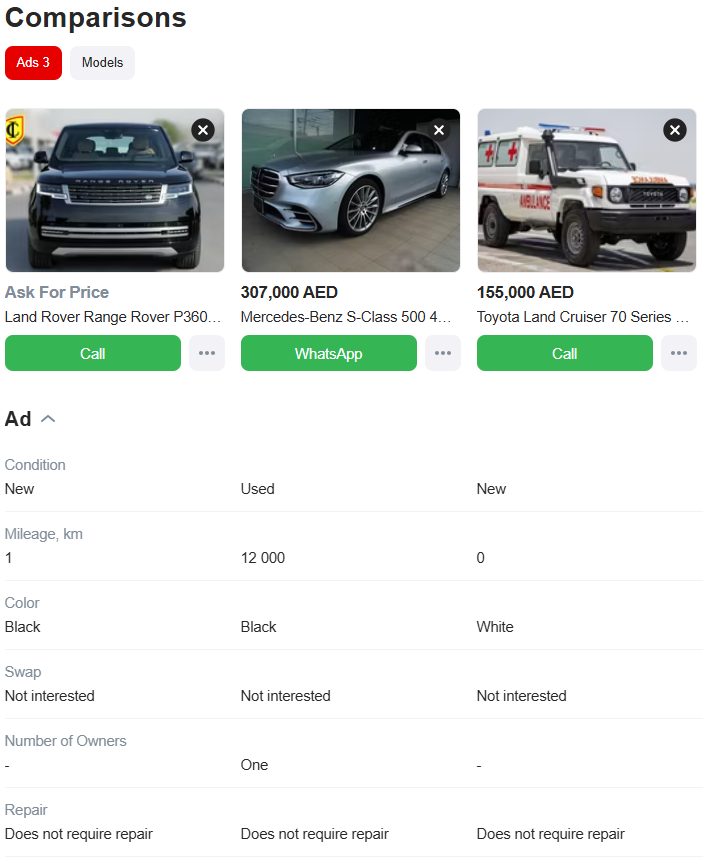
Figure 2: Compare listings side by side to find the best deal.
Useful Links
Related Pages
What to Read Next
See which models dominate the GCC market.